
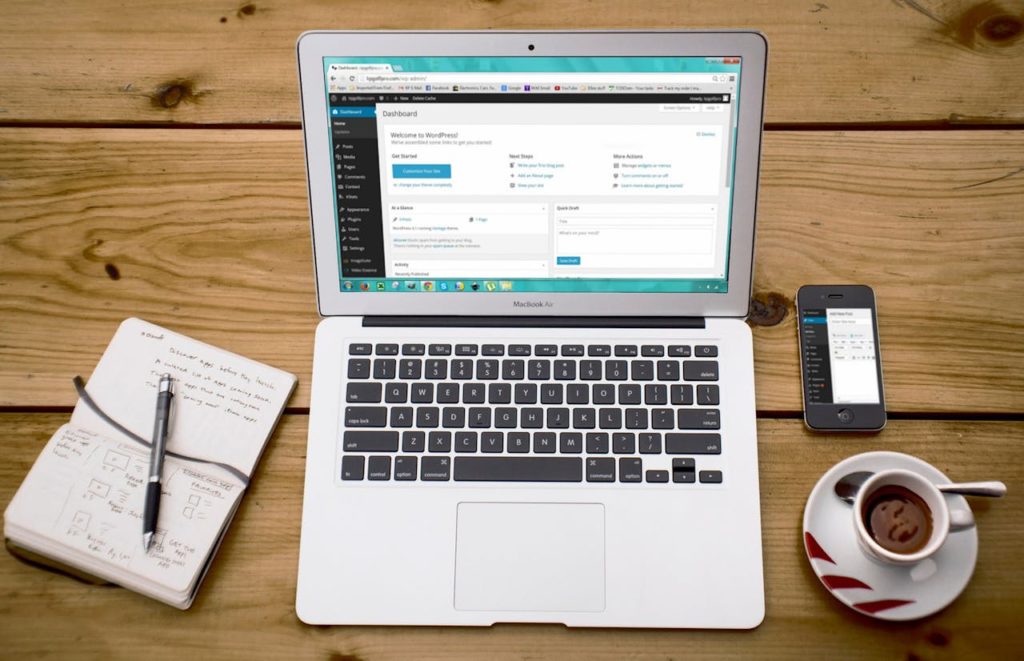
To create a WordPress website, you need somewhere to host it, a theme for its appearance and a few useful pages. Build one page, check it on your phone, then repeat. You can use AI to help plan and write, but you still need to check the content and make sure the website works.
This beginner’s guide follows a simple business website: Home, Services, About, FAQs and Contact. You can adapt the same process for a portfolio or a blog. It covers self-hosted WordPress, the built-in block editor, Elementor Free and practical ways to use ChatGPT or Claude along the way.
A small, useful website comes first
You do not need to master every WordPress setting before starting. Aim for a website that tells visitors what you do, answers their questions and gives them an easy way to contact you.
- 01 · PREPAREChoose hosting, gather your information and plan the pages.
- 02 · BUILDChoose a theme and make one page in your preferred editor.
- 03 · CHECKTest the mobile layout, links and enquiry form before launch.
What do you need to create a WordPress website?
WordPress.org provides the free, open-source software you install on hosting you choose. WordPress.com is a hosted service with its own plans and restrictions. This guide uses the first approach. If you are still deciding between platforms, start with our free website builder comparison.
For a public website, arrange a domain name, suitable hosting and an HTTPS certificate. Ask your host to meet the current WordPress requirements, provide supported server software and explain its backups and renewal charges. A small starter site does not automatically need a VPS.
| Item | How the cost works | What to check |
|---|---|---|
| WordPress software | Free to download and use. | Installation and ongoing care still need arranging. |
| Domain name | Normally a recurring registration charge. | First-year price, renewal and who owns the domain. |
| Web hosting | A monthly or annual hosting charge. | Full renewal price, VAT, backups, storage and support. |
| Theme and editor | You can begin with a free theme and the block editor or Elementor Free. | Whether a demo relies on features your chosen version includes. |
| AI assistance | Use an account you already have, or check the tool’s current free and paid options. | Usage limits and whether a separate AI subscription is needed. |
| Your time and maintenance | You do the work or agree a support service. | Who handles updates, restores, broken forms and future changes. |
Compare the whole first year and the renewal year. A low introductory hosting price can look different once the domain, backups and other requirements are included. With VPS hosting, a Plesk or cPanel licence may be a separate charge; a provider’s server dashboard is not necessarily a website control panel. Our cheap VPS hosting guide explains the managed and unmanaged options.
TakeawayFree WordPress software does not mean every part of a live website is free. Choose the hosting and support you can comfortably maintain, then use free editing tools to get started.
Plan the pages before choosing colours
Write down who the site is for, what you offer and what someone should do next. Gather your actual business details, service descriptions, photographs and answers to questions customers ask. This makes the design stage much easier.

A sensible five-page starting point
- Home: your offer, location, useful proof and next step.
- Services: what is included and who it suits.
- About: the people and experience behind the work.
- FAQs: practical questions about booking, delivery or getting started.
- Contact: a form and the contact methods you use.
Keep the first version manageable
A five-page plan is an example, not a rule. A blog needs a posts area; a shop needs products and a buying process. Privacy information and other required business pages sit alongside the main pages.
Keep unfinished ideas in your notes. A short page with clear, accurate information is more useful than a long page full of filler.
For the examples below, imagine a fictional local gardening business called Green Corner Gardening. The name and page plan are illustrative. Replace them with your own services and verified details.
A short explanation of the work, service area and how to ask for a quote.
Install WordPress and find your way around
Many hosts offer a WordPress installer. Choose your intended domain, create the site through the host’s guided process and keep the access details somewhere secure. If the domain is registered elsewhere, ask which DNS records need changing. Check existing email arrangements before changing nameservers.
Your host can confirm the administration address; it is commonly your domain followed by /wp-admin/. Once signed in, focus on these areas of the WordPress dashboard:
- Pages: the main information pages of your site.
- Posts: articles and news, usually organised with categories.
- Media: your uploaded images and documents.
- Appearance: themes and the design tools available with your theme.
- Plugins: additional features.
- Settings: site-wide options, including the homepage.
Use your own account and a strong, unique password. Ask about two-factor authentication. If someone helps you, give them a separate account with the access they need rather than sharing your main login.
If you prefer help getting started: NetHome provides free WordPress installation, basic setup and technical guidance when you buy hosting from us. You build and manage the pages. The setup offer explains what is included.
Choose a theme you can live with
A theme controls much of the presentation. On a fresh site, go to Appearance → Themes → Add New, preview a suitable option, then install and activate it. The official WordPress theme directory is a useful starting point. See the WordPress theme instructions if your options differ.
Choose for the sort of pages you need rather than the demo photograph. Check the navigation, article layout, mobile menu and whether the free version includes the design features you want. Avoid importing a large demo site just to obtain one attractive homepage.
Block theme
Usually provides site-wide design through Appearance → Editor, including templates, headers and navigation.
Classic or hybrid theme
May use the Customiser, Appearance → Menus or its own settings. Page content can still use the block editor.
Pick a small colour palette and readable type. Keep buttons consistent. If you are changing an established site, take a backup and try the new theme on a staging copy first; existing page layouts may depend on the old theme or its plugins.
Build your first page
Create one useful homepage before making the rest. In Pages → Add New, add a title and save a draft. Pages are a good fit for evergreen information; posts suit articles. The official guide to creating pages explains the distinction and page settings.
Option A: use the built-in block editor
Add a heading, a short paragraph, an image and a button. Use the + inserter to choose blocks; select a block to see its toolbar and settings. List View helps you see the order of the page. Keep headings in a sensible sequence and link the button to your Contact page.
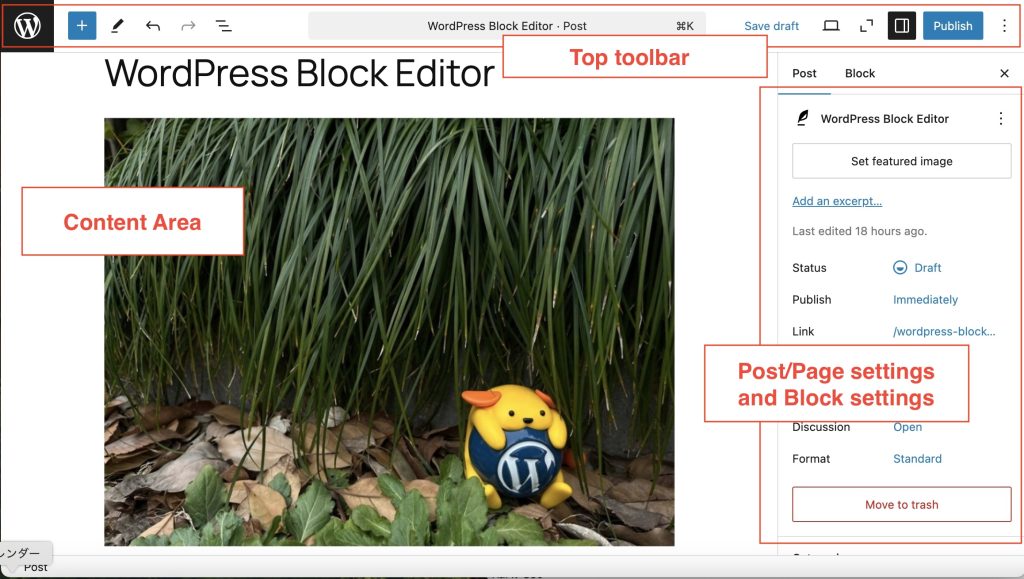
For our gardening example, add the main heading from the page plan, a description of the work, three service summaries and a contact button. Preview the page on a phone as you build. The block editor guide explains the controls in more detail.
Option B: use Elementor Free
If you prefer a visual drag-and-drop approach, install Elementor Website Builder from the official plugin directory. Open your page and choose Edit with Elementor. Add a layout container and free elements such as headings, text, images and buttons, then preview and save.
Use one editor for a particular page. Switching between editors can make existing layouts awkward to maintain. Check that the widgets and templates you choose are available in the free version. Elementor Free does not automatically include paid AI features or every form and template option. Follow Elementor’s page-opening instructions if you need help finding the editing button.
| Your priority | Try first | A useful test |
|---|---|---|
| A simple site with fewer moving parts | The built-in block editor. | Can you build your main page with the blocks and patterns provided? |
| You prefer arranging a page visually | Elementor Free. | Can you produce the layout using its free elements and keep it tidy on mobile? |
| You are unsure | Try each on a separate practice page. | Which one can you confidently edit again next month? |
TakeawayThe best editor for your first website is one you can understand and maintain. Build a small example in each before committing to a complicated layout.
Set your homepage and navigation
Publishing a page called Home does not always make it the front page. For a business site using a static homepage, publish the Home page, then open Settings → Reading. Choose A static page, select Home as the homepage and save. If you want a blog, create a separate Blog page and choose it as the posts page.
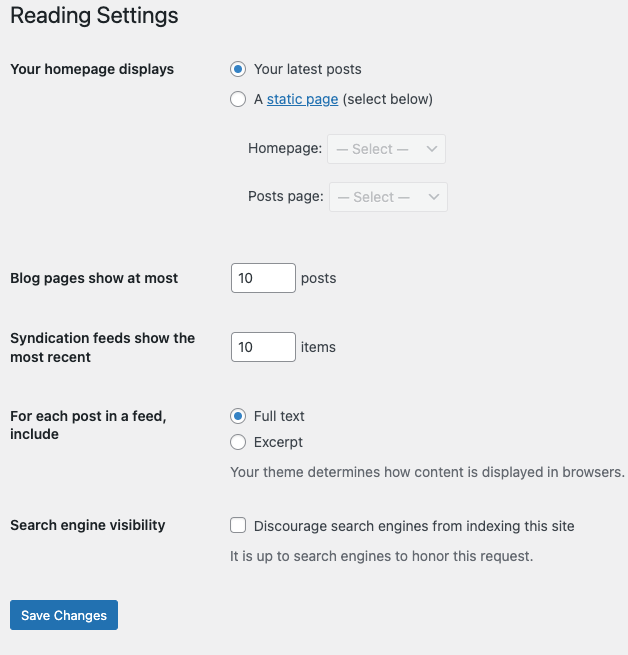
A theme with a Front Page template can override the page you expect to see. Check the theme instructions if changes appear to have no effect. WordPress explains this in its static front page guide.
Add the pages to your menu
With a block theme, open the Site Editor and edit the header’s Navigation block. Add your published pages, arrange their order and save. Some menus use a Page List that automatically includes pages, so check what it is showing.
With a classic or hybrid theme, look for Appearance → Menus or a menu section in the Customiser. Create a menu, add the pages, choose its display location and save. The classic menu documentation covers this route. Test the mobile menu too: it should open, close and lead to the correct pages.
Add enquiries and essential features
Install a plugin when there is a clear job for it. In Plugins → Add New, find the official listing, check compatibility and recent maintenance, install and activate. Avoid several plugins doing the same job. See WordPress’s plugin guide for the installation and update controls.
For a small enquiry website, think about a contact form, reliable email delivery, backups, security and basic SEO tools. Your host may already provide some of these. Agree who looks after each part rather than assuming every task requires another plugin.
A contact form is only finished when the message arrives
- Ask for the information you need: usually a name, email and enquiry.
- Add an appropriate spam check, such as Cloudflare Turnstile through a supported integration.
- Explain how you use the details and link to your privacy information.
- Send a test enquiry and confirm it reaches the intended inbox.
- Reply to the test message to check the visitor’s email is used correctly.
For the gardening example, an optional postcode and description of the job may help. Avoid making people fill in a long questionnaire before they can ask a simple question.
How to use AI to help make a WordPress website
You can use ChatGPT or Claude to organise a brief, suggest sections, draft text and spot questions your page has not answered. This is a useful way to get past a blank screen. It does not automatically install WordPress, configure email or make the finished site reliable.
There are also AI website builders and WordPress-specific AI tools that generate layouts. Their access, pricing and export options vary. Check whether a tool produces editable WordPress content or code you would have to integrate separately. You do not need an AI website-building subscription to try the prompts below.
Use AI to plan the site
Give it the information you would explain to a designer. Name the customer, the services and the action you want visitors to take. Ask it to identify gaps before drafting. Replace the details in square brackets:
Prompt 1 · Plan five useful pages
I am creating a WordPress website for [business] serving [area].
Our customers are [audience]. We offer [verified services].
The main action is [request a quote / book a call / contact us].
Suggest a five-page structure and the questions each page should answer.
Use plain British English. Ask me for missing facts. Do not invent prices, reviews, qualifications or guarantees.
Use AI to draft one section at a time
A broad request to “write my website” often produces vague promises. Start with one section and a short list of verified facts. Read it aloud, remove phrases you would never say to a customer and add details that only you can supply.
Prompt 2 · Draft a homepage introduction
Using only these facts: [paste your verified business details], write a homepage introduction of about 80 words.
Include a clear heading, a short explanation of the service and one suggested button label.
Keep the tone friendly and specific, in British English.
Mark missing information as [TO CONFIRM]. Do not claim we are the best or invent experience, results or testimonials.
For images, ask for a shot list: the team at work, a service being carried out or a finished project. Use your own suitable photographs where possible. Check permission and accuracy before publishing generated or stock imagery; do not present an invented project or person as your own work.
Use AI to review a draft page
Paste the page text or share an appropriate screenshot and ask what a first-time visitor would still need to know. AI may help identify unclear wording or missing information. Its review is not a substitute for opening the actual website and checking the layout and form yourself.
Prompt 3 · Review before publishing
Review this draft page for someone who has never heard of our business: [paste page text].
Identify unclear claims, missing practical details, repeated wording and questions a visitor might still ask.
Suggest specific improvements in British English.
Do not invent answers. Separate confirmed facts from items I need to check.
Can Claude write the whole page as code?
It can help generate HTML and CSS, but a standalone HTML page is not automatically a WordPress theme or an editable Elementor layout. Pasting code into a Custom HTML block can leave you with a page that is difficult to update; scripts may also be restricted. For a beginner, use AI’s suggestions to build with normal blocks first.
If you want the coding route, our Claude landing page guide explains the wider workflow. Test unfamiliar code on a disposable practice site and have custom plugins or PHP reviewed before using them on a live business site.
Keep your judgement in the processCheck every claim, service description and contact detail. Keep passwords, API keys and private customer information out of prompts. Never let AI invent reviews or proof of work.
For Google visibility, the goal is useful, accurate content. Google’s guidance on generative AI content warns against producing lots of low-value pages. AI assistance is not a shortcut to rankings. Our guide to AI-built websites and Google covers the checks in more detail.
Check your WordPress website before launch
Work through the site as a customer would. Start on your phone, open the menu, read a service page and send an enquiry. Then repeat on a desktop. A website that looks complete in the editor can still have a broken button or a form sending to the wrong address.
Your before-launch checklist
- Content: replace placeholders; confirm services, contact details and opening times.
- Navigation: every menu item and button reaches the intended destination.
- Mobile: text is readable, images fit and nothing forces the whole page to scroll sideways.
- Accessibility: use clear labels, useful image descriptions, visible keyboard focus and readable contrast.
- Enquiries: messages arrive, required fields work and the confirmation makes sense.
- Performance: resize and compress oversized images; avoid heavy effects that add little value.
- Search readiness: use descriptive page titles and useful headings. On a site ready for public search, check that Settings → Reading is not asking search engines to avoid indexing it.
- Care: confirm HTTPS, backups, update responsibilities and a way to restore the site.
The search-engine visibility checkbox is a request to crawlers, not access control. Keep a private trial or staging site protected with the host’s appropriate access restrictions. For your public site, an SEO plugin or sitemap can help organise settings, but neither guarantees Google will index a page or give it a particular position.
After launch, keep a small maintenance routine: check enquiries, update carefully with a recovery route, review backups and correct outdated content. Look at Search Console to see which pages people find, then improve the information that is helping them.
Creating a WordPress website: common questions
Can I create a WordPress website for free?
The WordPress.org software is free, and you can use a free theme and editor. A public self-hosted website normally needs paid hosting and a domain. You can practise first in NetHome’s free temporary environment. Hosted free plans, such as WordPress.com’s, have their own conditions.
Do I need coding skills?
You can build a straightforward website with blocks or Elementor Free without writing code. More complex features, custom integrations and troubleshooting may need technical help. Start with the smallest useful version of the site.
Can AI build my WordPress website for me?
AI can help with planning, drafts, images and sometimes layouts or code. How much happens automatically depends on the tool. You still need to check the facts, hosting, forms, permissions and mobile experience. The prompts in this guide are an assisted workflow rather than a promise of automatic publishing.
Should I use the block editor or Elementor Free?
Try the block editor first for a straightforward site. If you prefer Elementor’s visual editing, test a separate practice page using its free elements. Choose the editor you find easier to maintain and avoid switching editors on an existing page.
How long does it take to make a WordPress website?
It depends on the pages, features and how much content you already have. A rough practice page can be made in one sitting; a business site needs time for writing, photographs, revisions and testing. Finish one page before estimating the rest.
Do I need a VPS?
Not necessarily. Suitable WordPress hosting is often enough for a small starter site. Consider a VPS when workload, several sites or technical requirements justify it. Check whether management and a visual control panel are included.
Useful official instructions
Keep the official guidance beside you if a menu label or screen differs from the examples:
- WordPress: creating pages and the block editor.
- Working with themes and managing plugins.
- Reading Settings, the Navigation block and classic menus.
- Elementor: opening a page in its editor.
About this guide: Published 27 November 2026. Prepared with AI assistance and checked against the official guidance linked throughout. The gardening business and homepage plan are illustrative. Interface screenshots are credited to WordPress.org; they show reference versions rather than every current theme or installation. No search ranking or completion time is guaranteed.